How do I create a Designer QR Code in my account?

You can create free Designer QR Codes at QR Planet. If you also registered an account with us, you may save design templates and re-use them for other QR Codes.

How to create a designer QR Code in your account 

1. Log into your account 

Please log into your account on our QR Platform.

Login

Login
Login Form

2. Click on Design QR from the QR Code options menu 
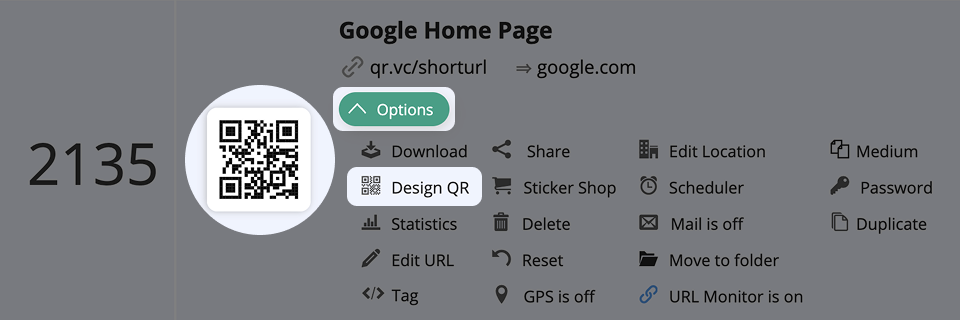
Head to your QR Code or Landing page section from your dashboard, click down the Options menu and select Design QR, or click the QR Code's picture in the overview to enter the QR Code Designer Mode.
Screenshot of QR Code options
Open the Options or click the QR Code.

Time to take a closer look at the different options in our QR Code Designer, like templates, colors, logo, and more.
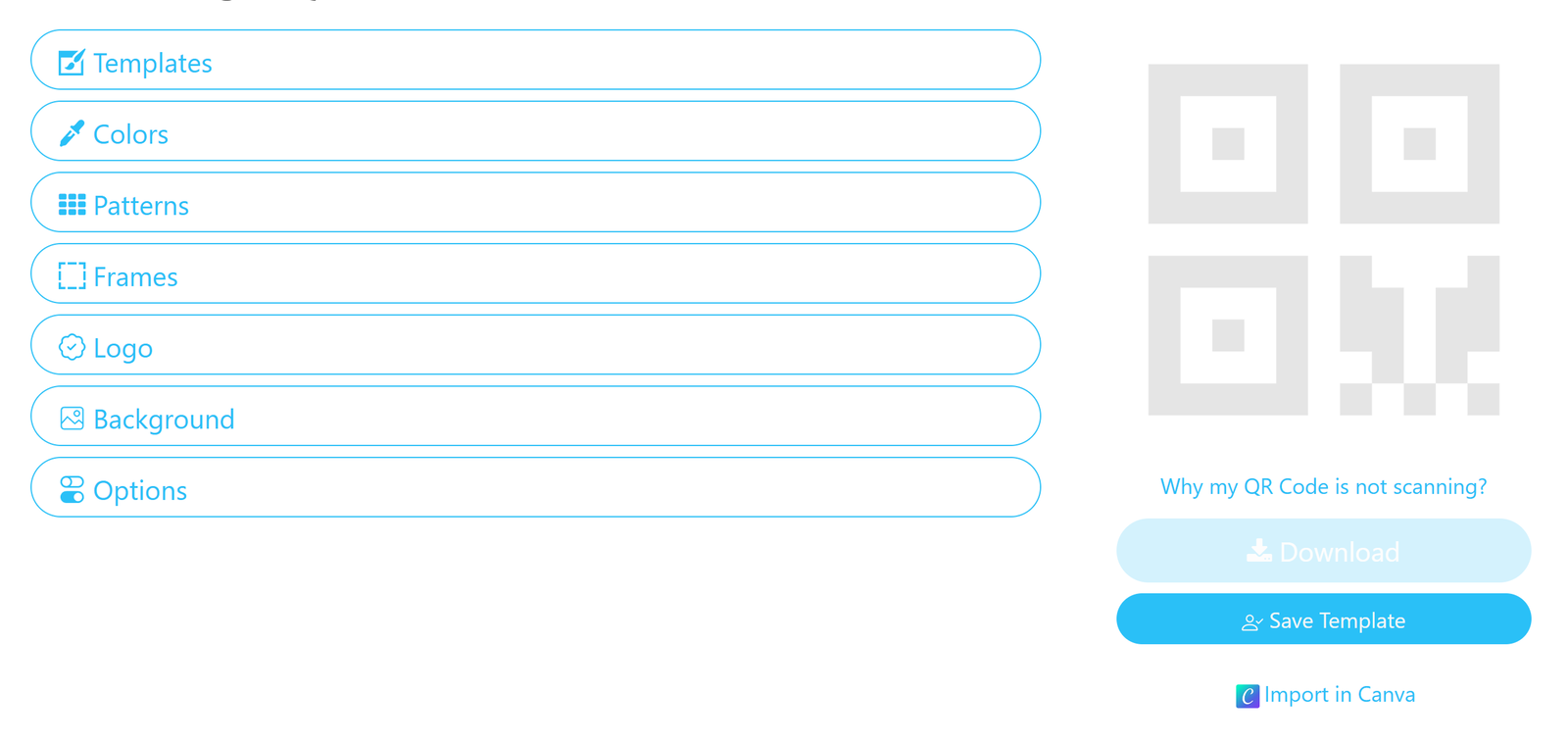
Screenshot of QR Code Design Options
Overview of the designer QR Code Options.

3. QR Code design templates

Choose between pre-made templates and your saved custom designs for your QR Code. Learn more about working with templates. 

If you have no template ready and want to create a new design, continue with this article.
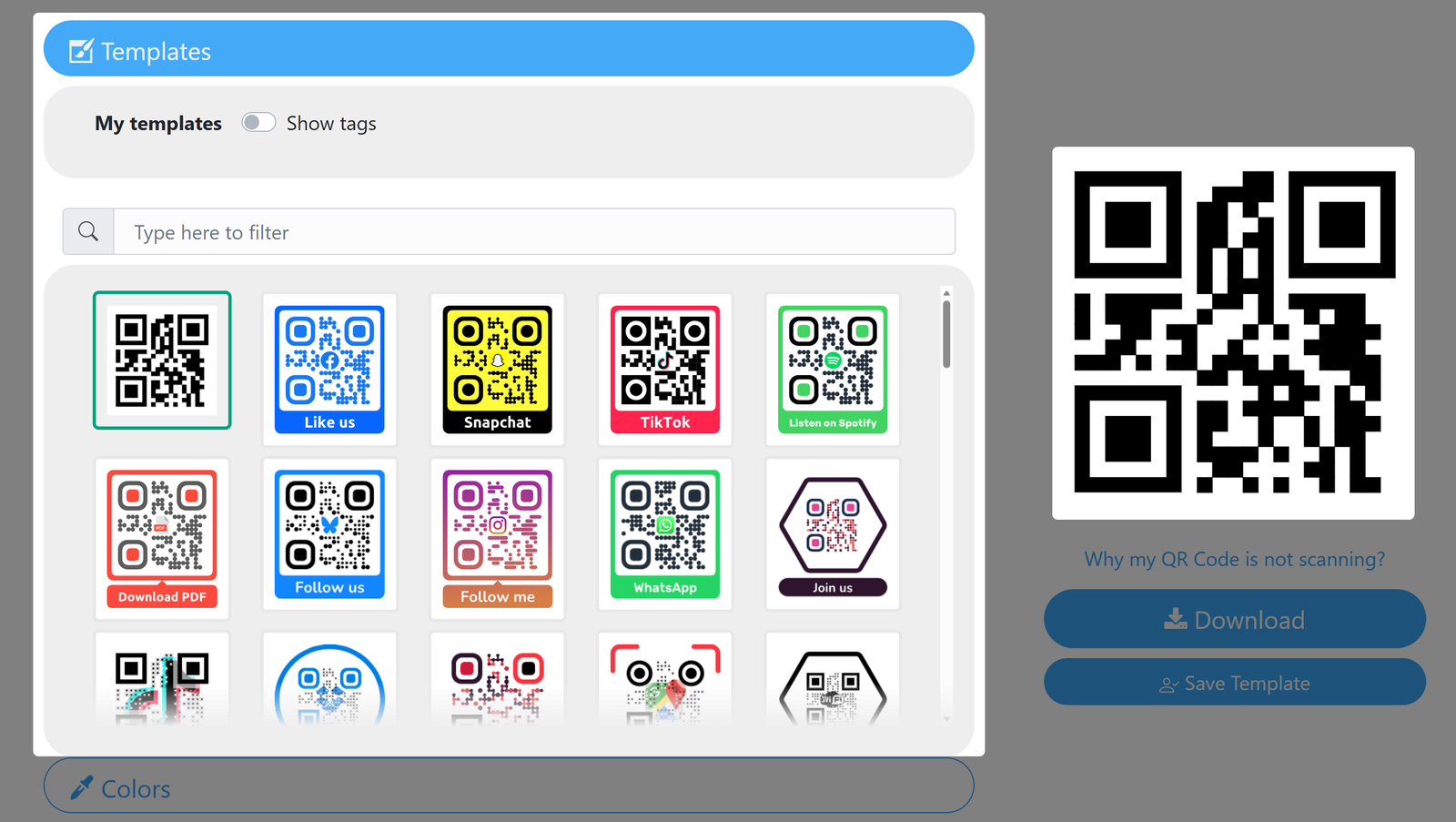
Screenshot of Design Templates
Manage your templates and apply them to your QR Codes.

4. Choose your QR Code's colors and background

You have a range of options to put some color into your QR Code designs. Let's quickly go through them.
Please keep in mind to always use colors with at least a moderate contrast to one another and to the background. If contrast is too low it may impede the scanning process.

Basis

Choose a base color to be applied to all QR Code elements.
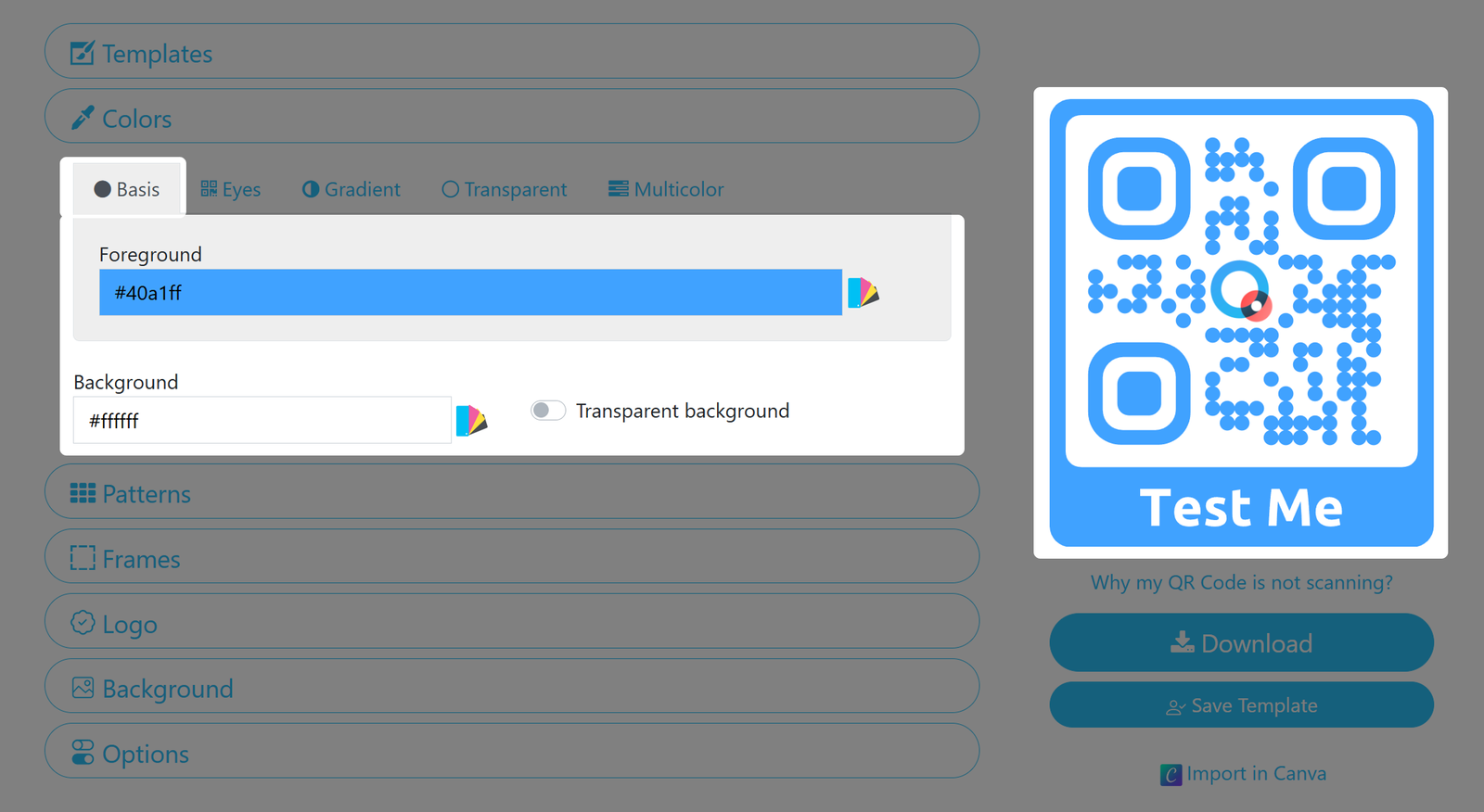
Screenshot of QR Code basic Color menu
Set a basic color of your choice for your QR Code.

Eyes 

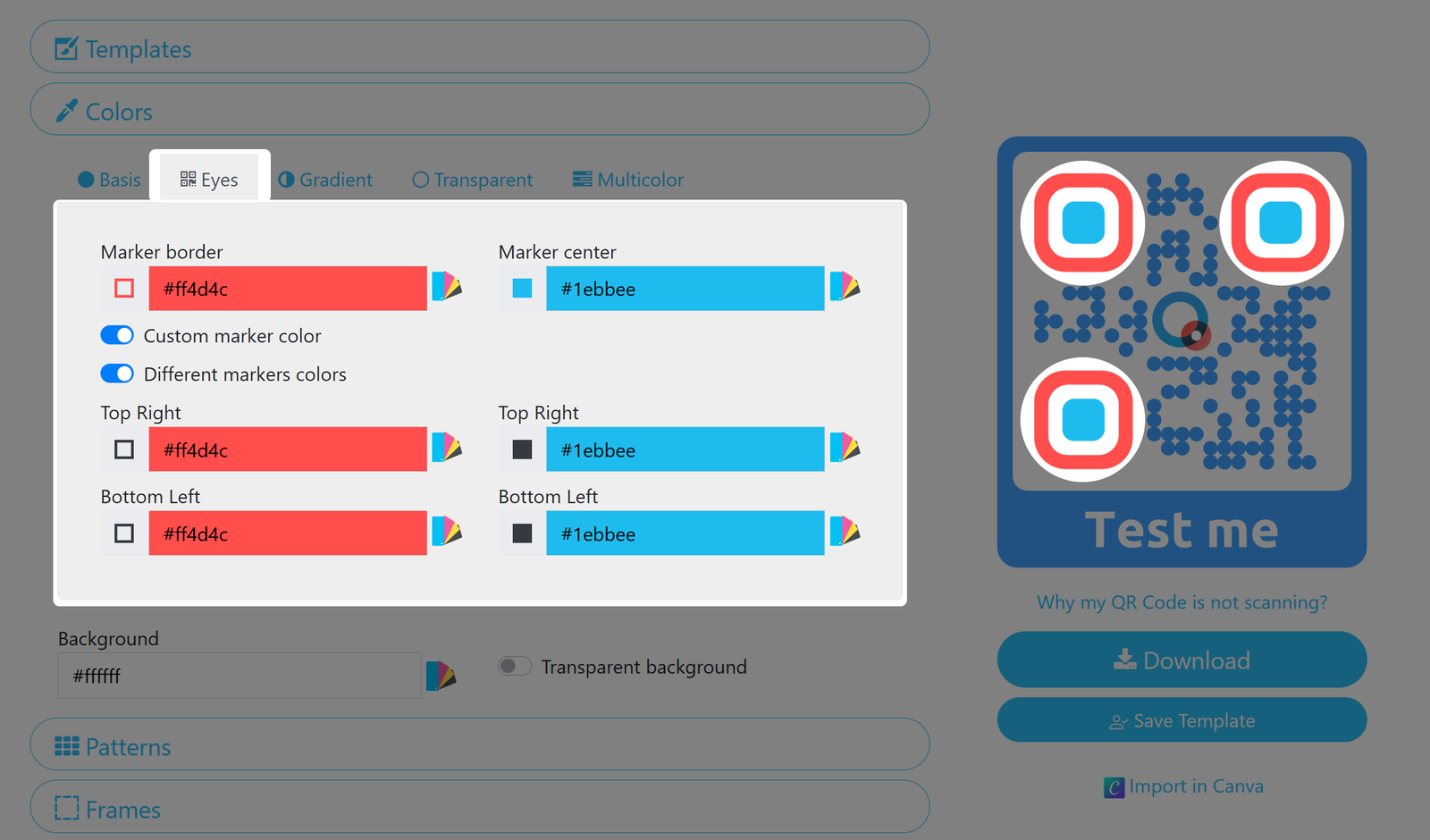
Set colors for your QR Code's 'Eyes'. You can use separate colors for each of the three centers and borders.
Screenshot of QR Code eye color menu
Set colors even for the third eye.

Gradient

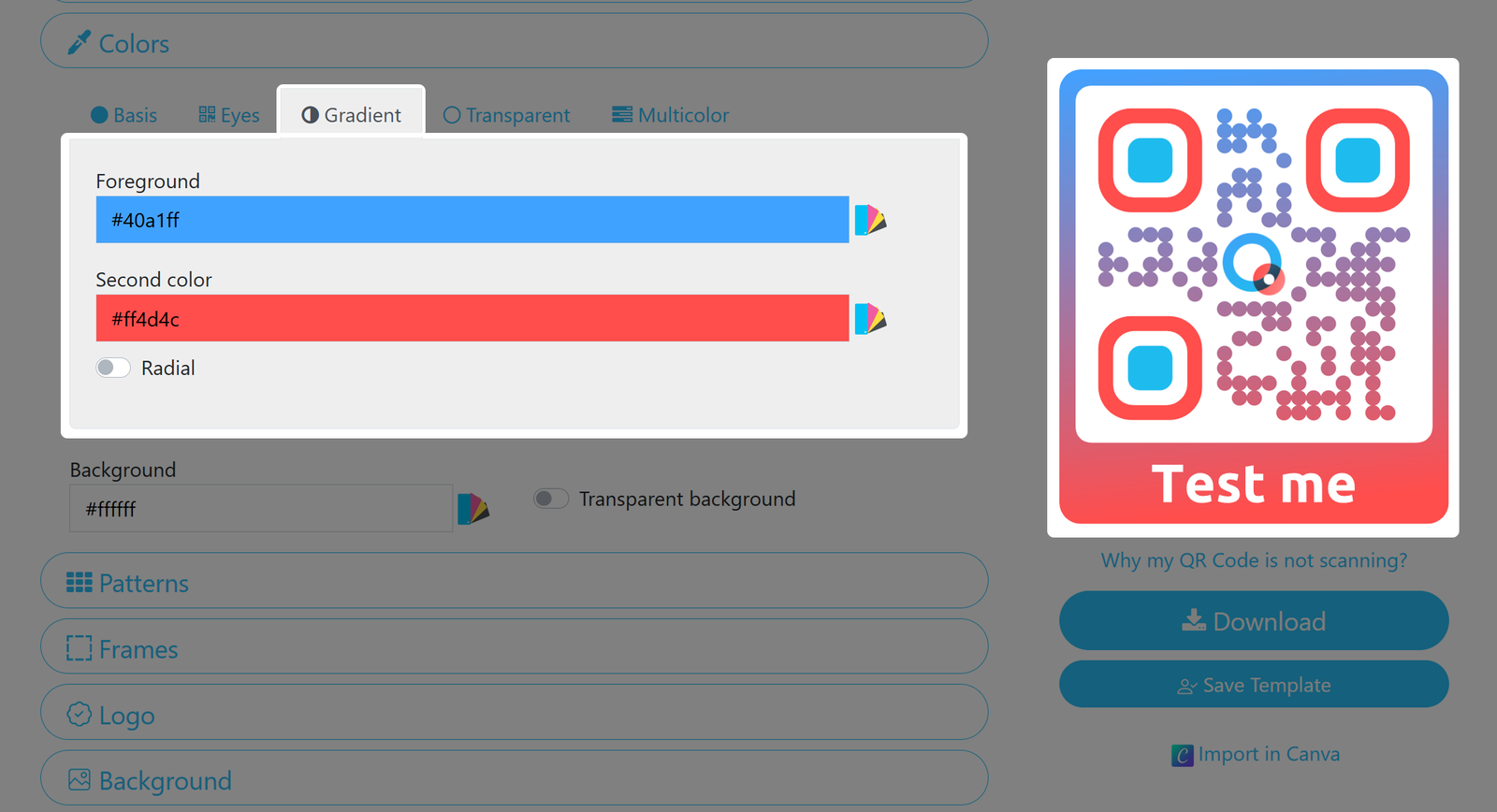
Implement a gradient color change from top to bottom. If the 'Eyes' have previously been set, they will not be affected by the gradient. Display the colors radially by activating the option.
Screenshot of QR Code gradiant color menu
Use gradient colors to liven up your QR Code.

Transparent

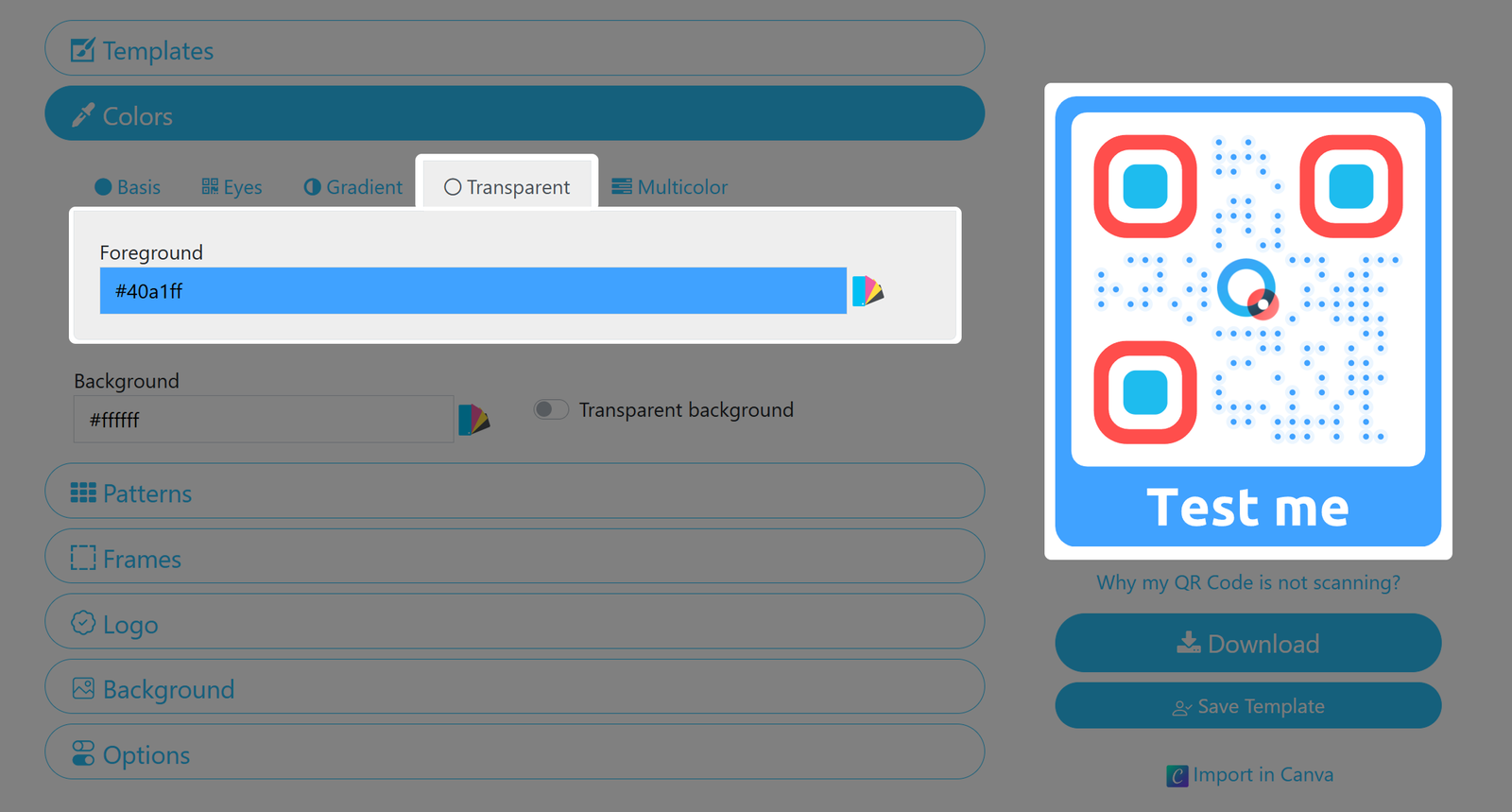
Use this option combined with Transparent Background (see below) if you want to use the medium you print the code on as the visible background, and want the Code to improve readability on any background, even one having the same color as the pixels. 
Screenshot of QR Code transparency menu
Want to print a blue QR Code on blue background? Use this option.

Multicolor

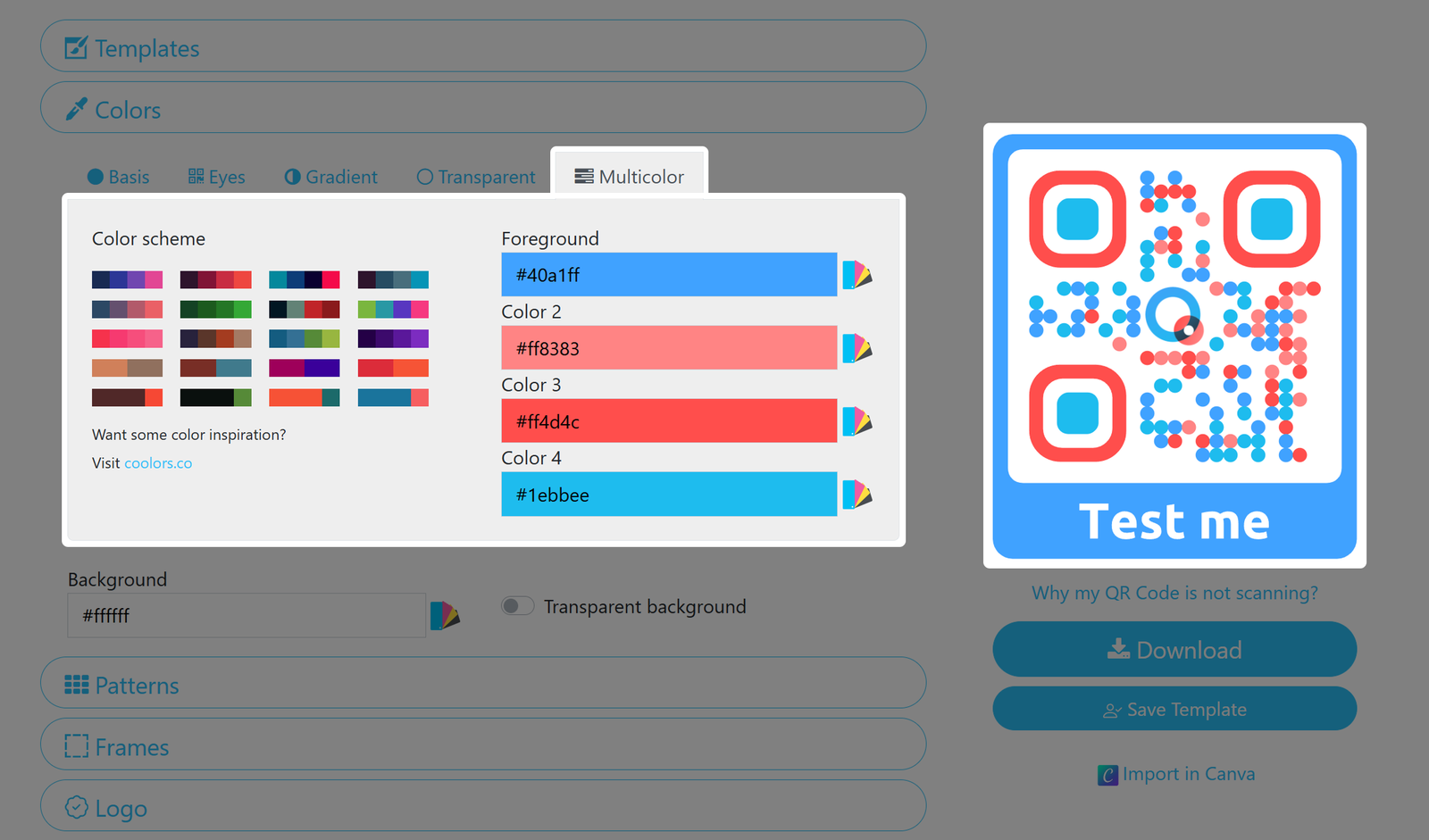
Give your QR Code the ultimate branding by implementing your CI colors even into the smallest dot. Set a foreground and up to three additional colors to bring more live to your QR Code.
Screenshot of QR Code multicolor menu
Counting the background, you can use up to five colors in your QR Code!

Background 

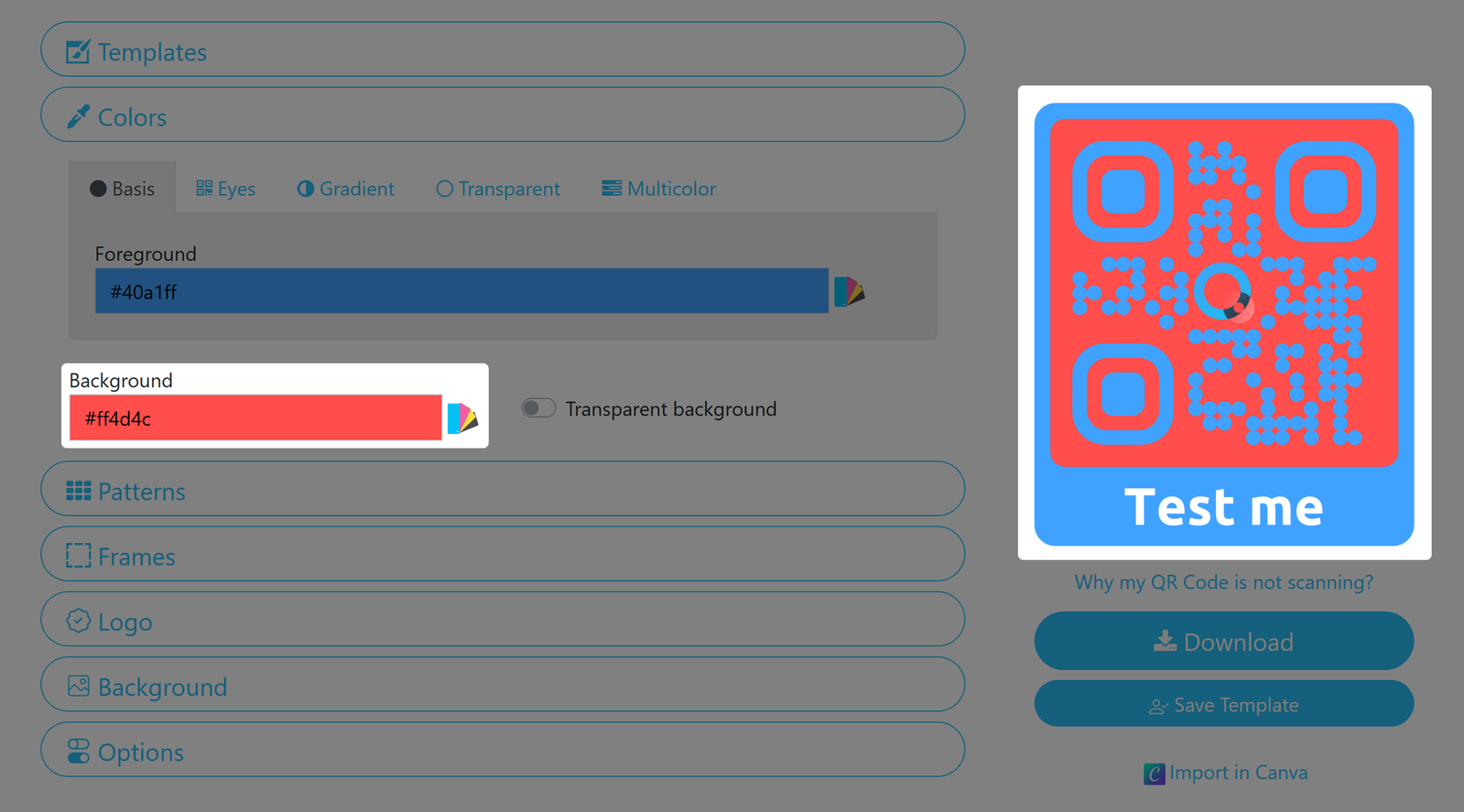
For all the above settings, you can additionally set the intended background color for your design.
Screenshot of QR Code background color option
Remember: If the contrast is too low, the QR Code might be harder to scan.
You may activate the Transparent Background: Only the QR Code elements will be rendered but not the background color; this is of use if you want to show the medium the QR Code will be printed on as the visible background. The rules of contrast still apply!
If you want to print the Code on a medium with the same color as the code, also use the Transparent tab!
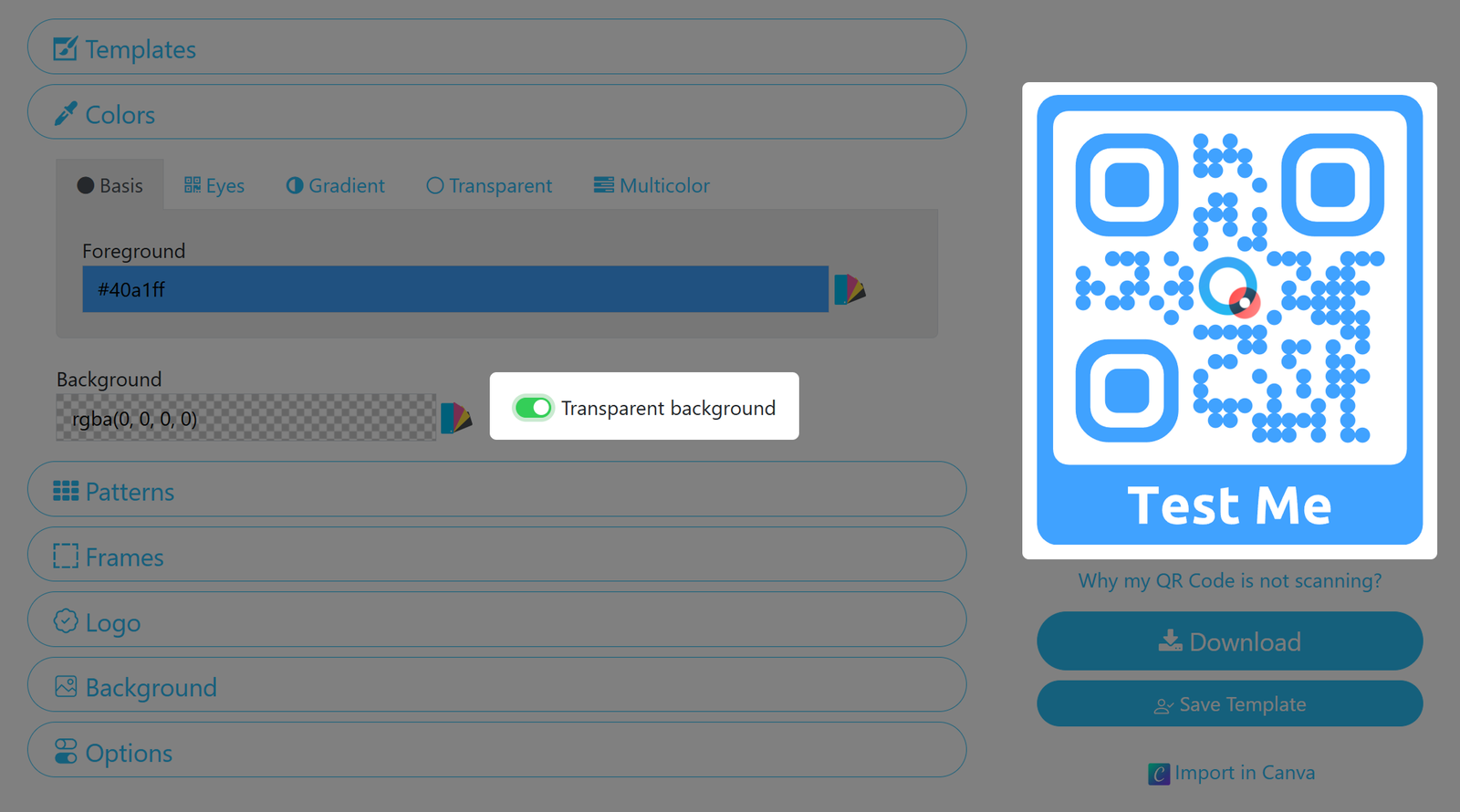
Screenshot of QR Code transparent background option
Use a transparent background if necessary

5. Select design patterns for your QR Code
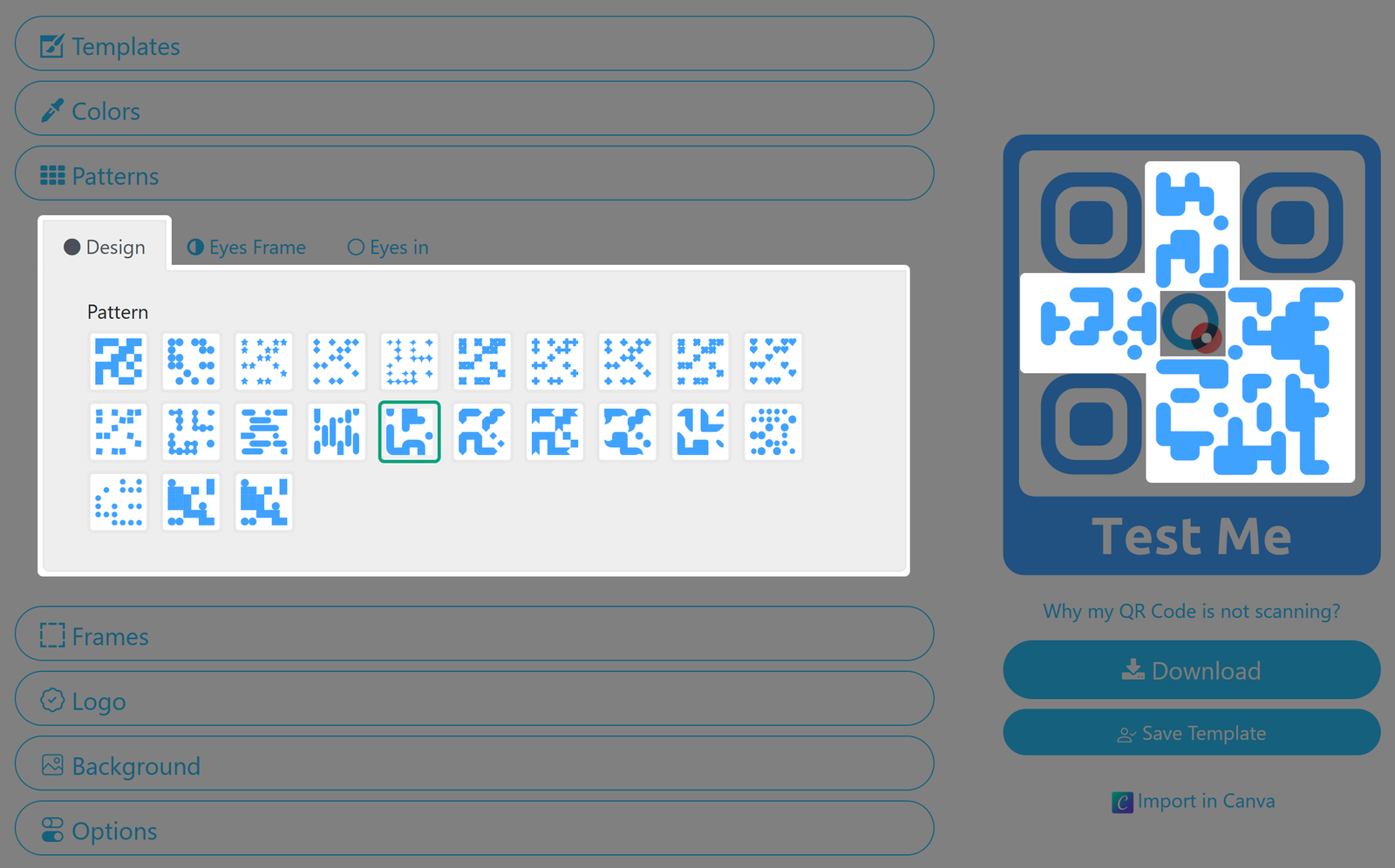
There are a number of patterns available for you to choose from.  Use the Design tab to set the inner code pattern.
Screenshot of pattern design tab
Remember to test your QR Code if using more exotic patterns.
Under Eyes Frame you will find different shapes for the QR Code marker borders.
The markers are important, as they indicate the correct orientation of the QR Code. 
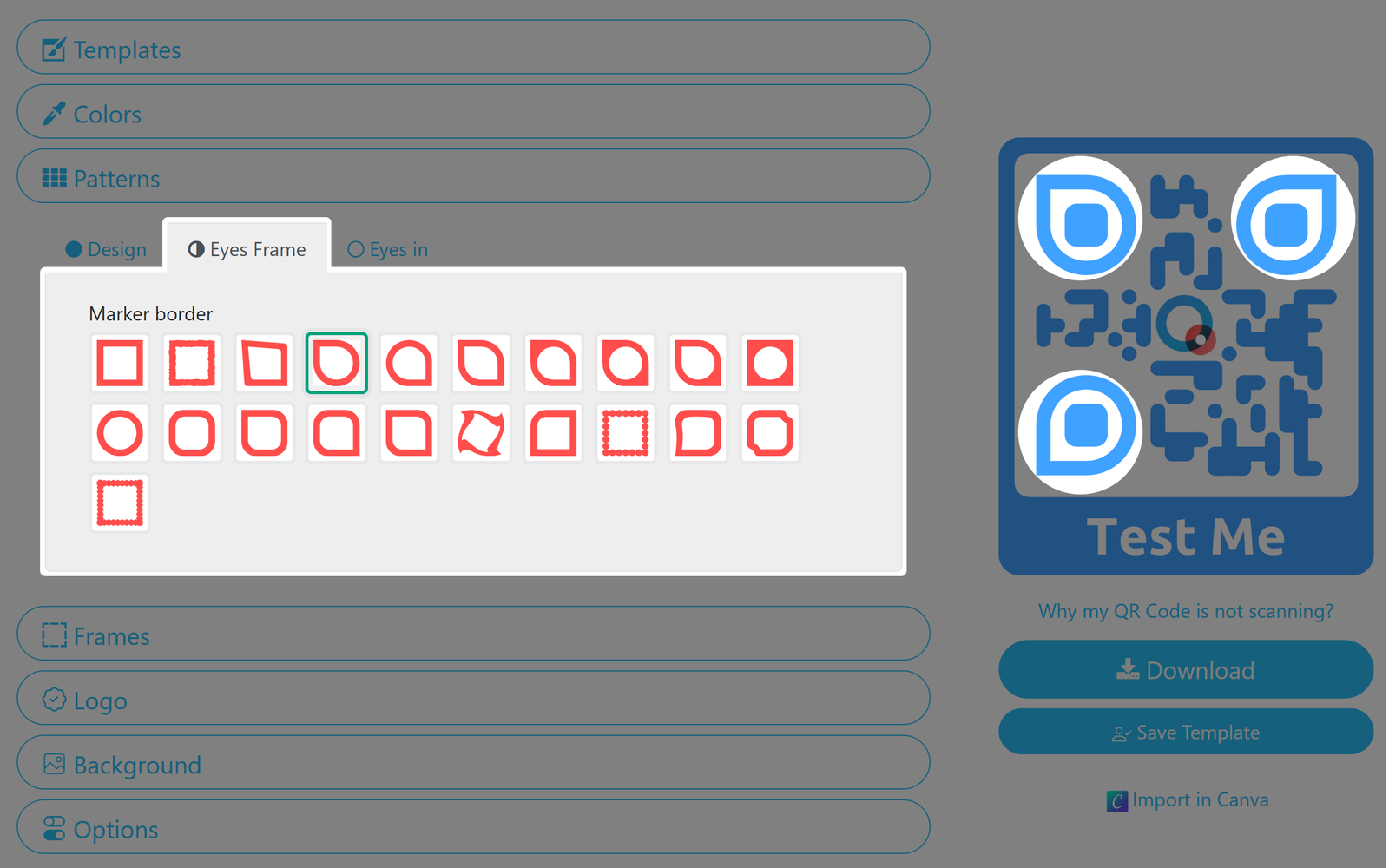
Screenshot of pattern eye frame tab
In nature, not all eyes are squares.
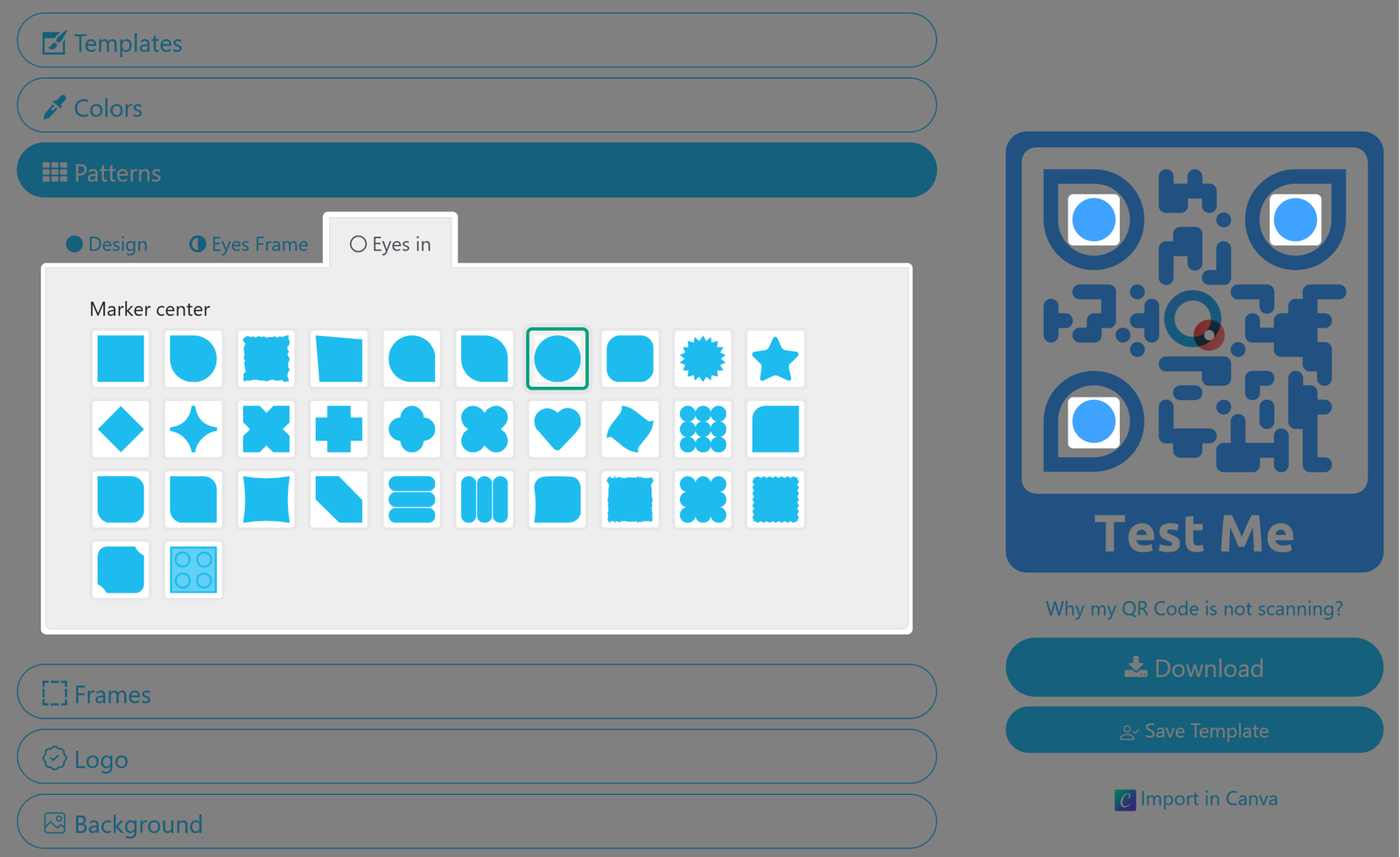
Eyes in allows you to change the marker centers. 
Screenshot of pattern eyes in tab
Set the inside of your markers.

6. Select your QR Code's frame and set a label

The frame wraps around your QR Code. It often increases the QR Code's visibility and can include a call to action, like “Scan me” or “Download”. 

Choose between frames with or without labels and define a separate frame color. You can also set the text size, font, and color of your label.
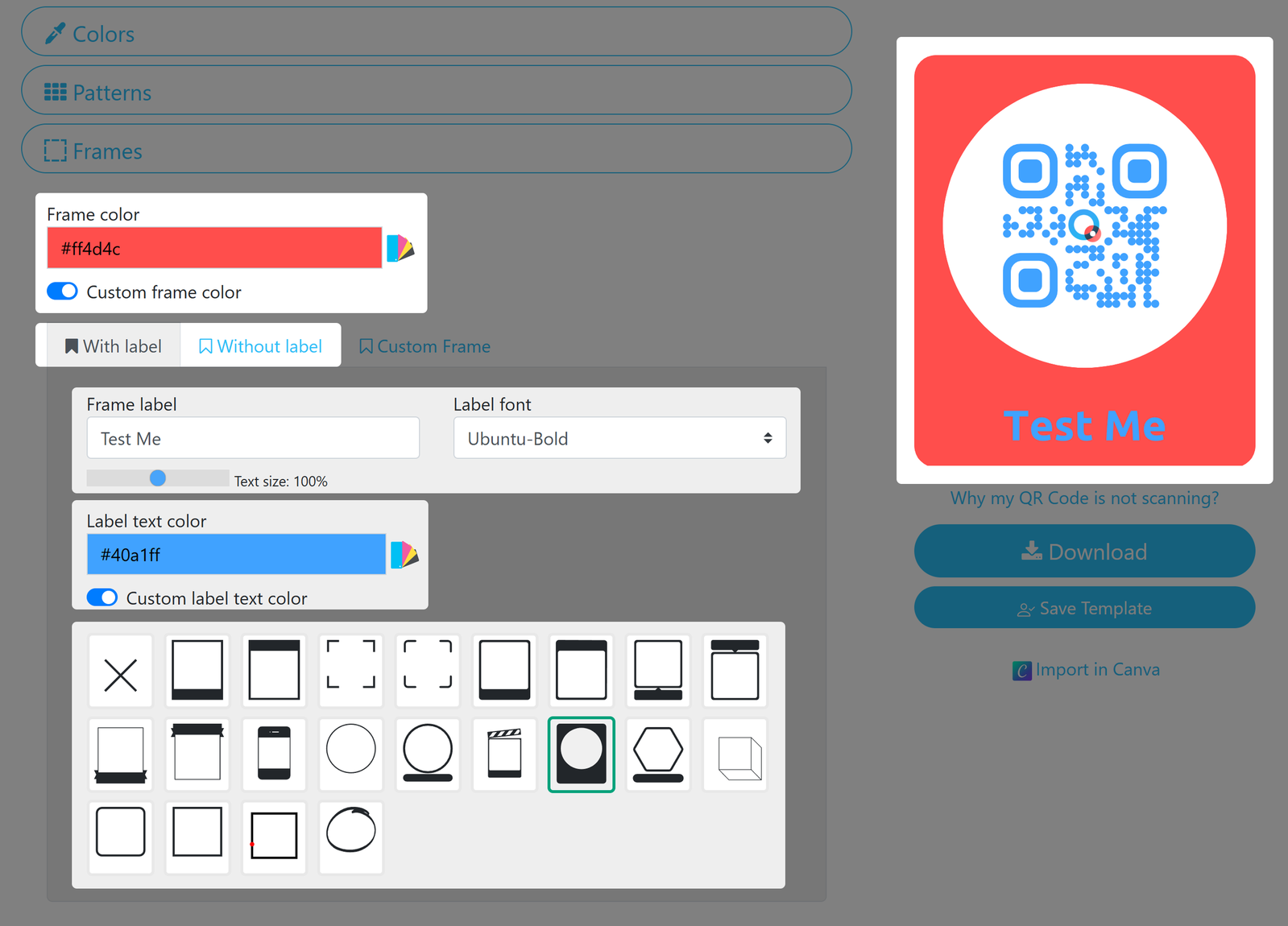
Screenshot of frames tab
Make your QR Code stand out or give instructions.

Custom Frames are only available for our Enterprise customers. Contact us if you want to learn more.

If you choose to use a logo, it will sit in the middle of your design and will not only show who the QR Code belongs to but can also help indicate where the QR Code will take the user. Choose one of our prepared prominent logos or pick your own.
 
While you may upload your logo as PNG or JPG. However, we recommend the SVG Vector Format, not only ensuring a sharp and unpixelated look for your QR Code's logo, but also enabling you to apply CMYK colors to your logo.
 
If the logo is too small, it may not have the desired effect in regards to brand awareness but a if it is too large, the QR Code might become unreadable. You can also remove the background behind your logo so that the logo doesn't overlap with the pixels of the QR Code and looks nicer.
 

You can also set your logo as the QR Code's background (see below).
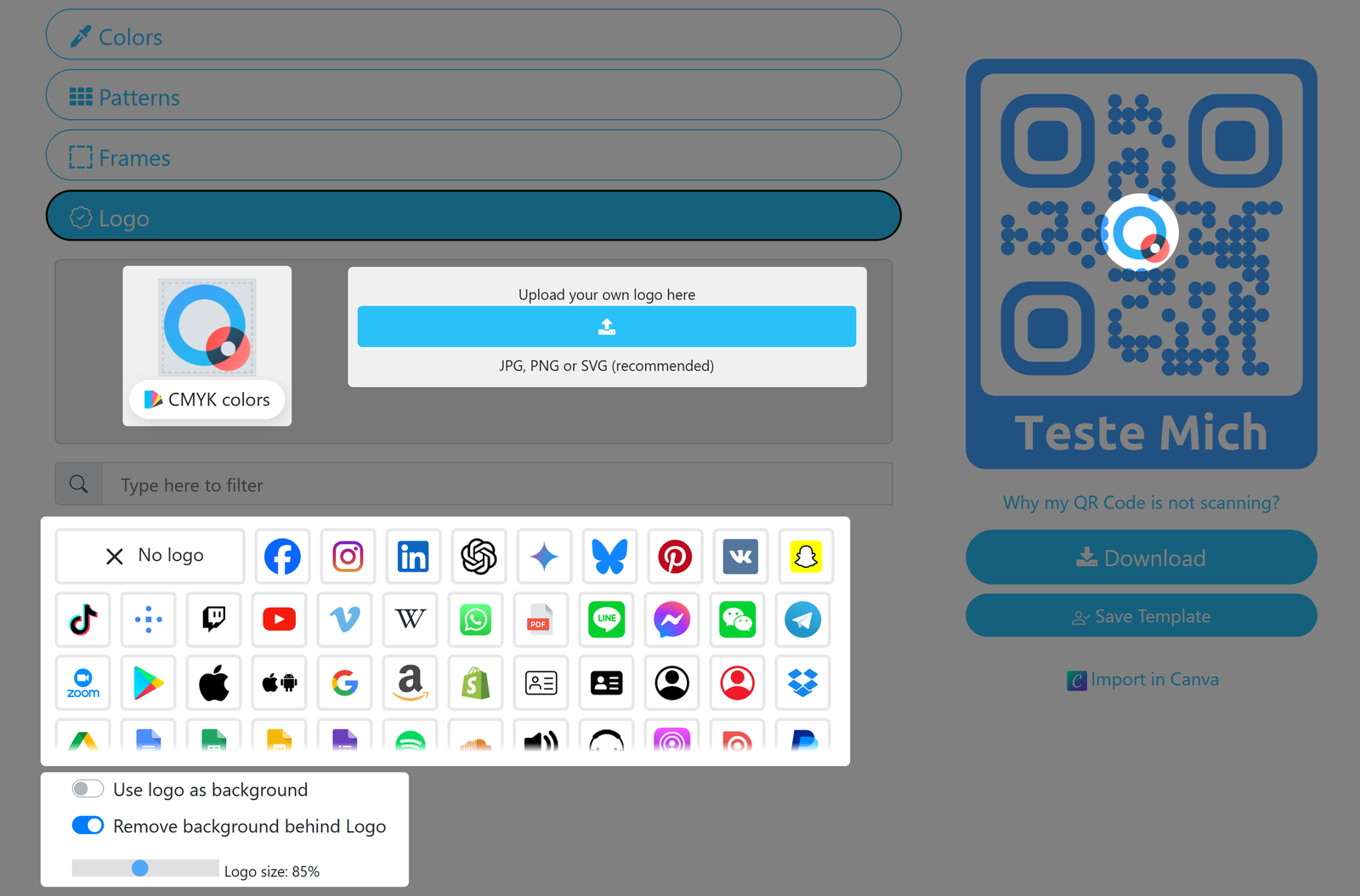
Screenshot of Logo tab
Make your QR Code identifiable by placing your logo in its center.

8. Use an image as your QR Code's background

You can upload an image and set it as your QR Code's background. 

Please be aware that this is an experimental feature. When using it, please make sure to also activate Transparent in the Colors Pane, and always test your QR Code - especially before printing in high volumes! 
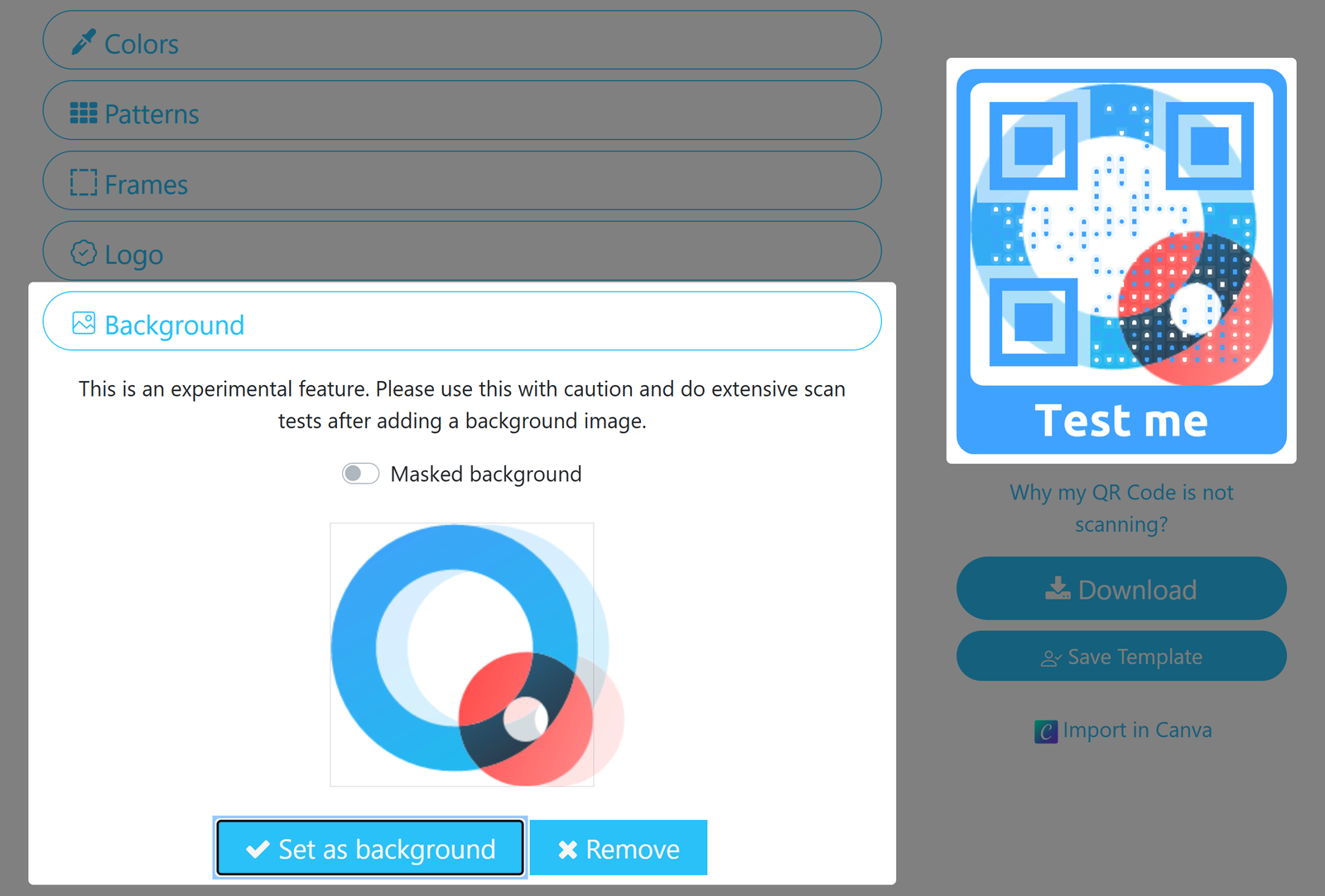
Screenshot of Background Tab
Set an image as background for your QR Code.

9. Set your QR Code's size and ECL 

Via the options pane you can choose your QR Code's Size and Precision (also known as Error Correction Level). The standard settings of 600 and H - Best are recommended, but the optimal values variy depending on the type of design you are creating.

The size parameter only affects downloaded QR Codes in PNG format. Vector formats do not have a fixed size since the can be scaled to any size.
Using a logo in the QR Code, the precision parameter will be automatically set to the highest value. This helps ensure the QR Code's readability.

In case your QR Code does not properly scan, try the Improve scanability setting and retest the Code.
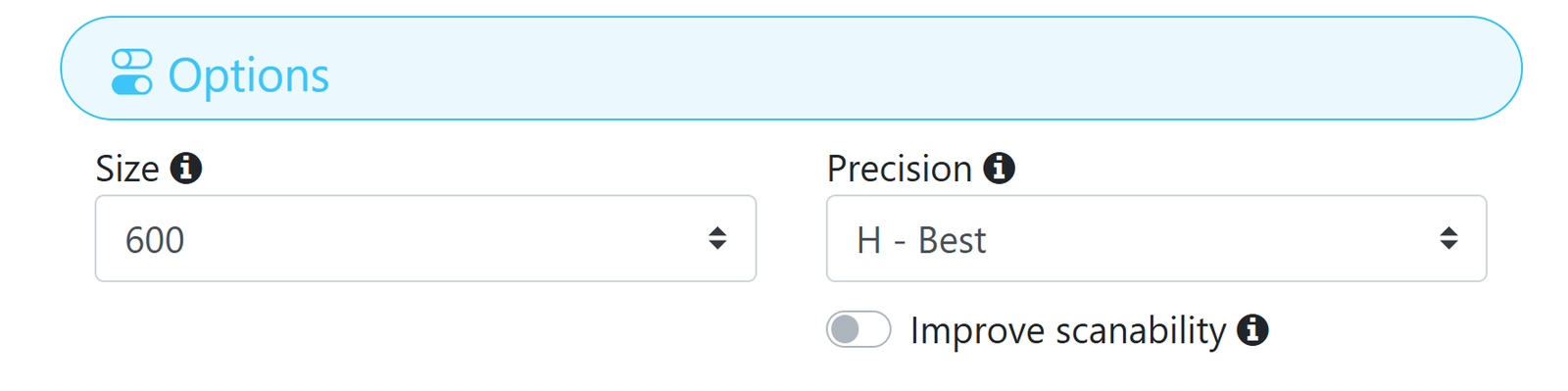
Screenshot of the design tool options pane
Play with the settings in case your QR Codes has trouble scanning.

10. Download your QR Code

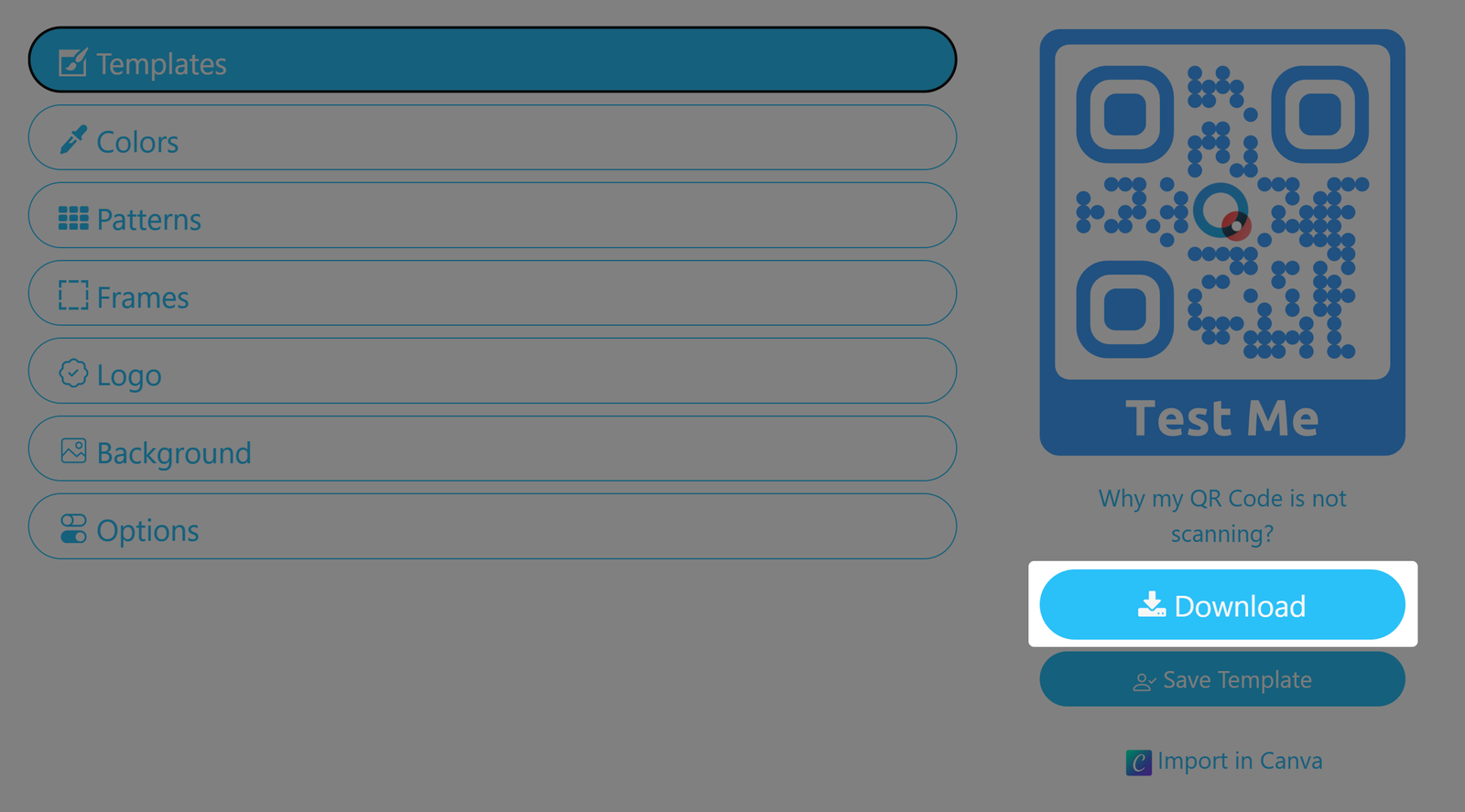
Now, all that's left to do is saving your design template and/or download your QR Code with the created design.
Screenshot of higlighted Download button
Download your designed QR Code.

You can download your designed QR Code as PNG, SVG or PDF, and without designs as EPS or DXF; this will mainly depend on whether you want to print your Code or use it in digital media. 
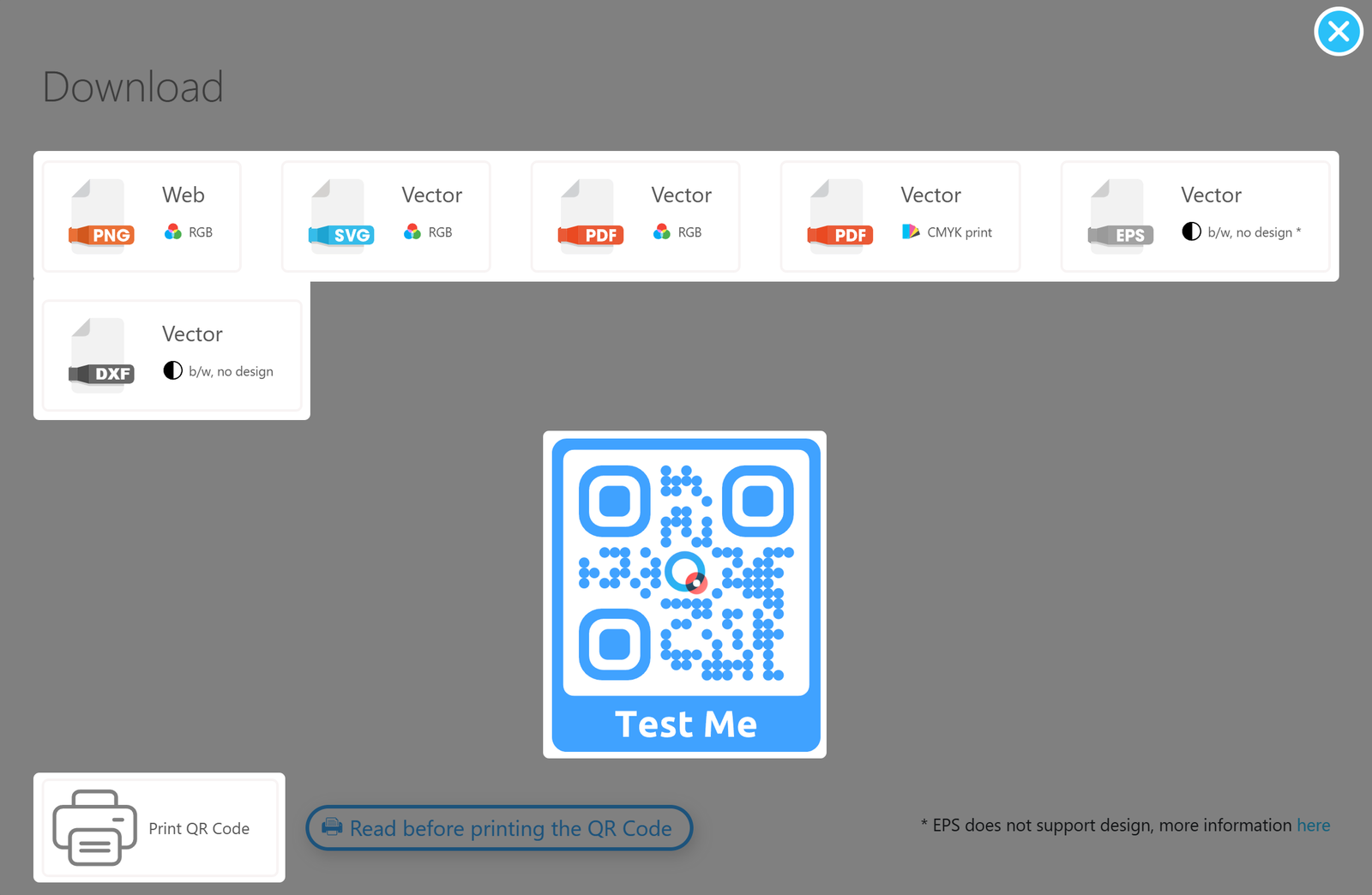
Alternatively, you can directly print the QR Code; please make sure to fit the QR Code to the page in the printing options.
Should you not be completely satisfied with the design, close the download pane and make all necessary changes before finally downloading.
Screenshot of download pane
Choose one of the many formats to download your QR Code as.

Working with templates

Saving your custom templates 
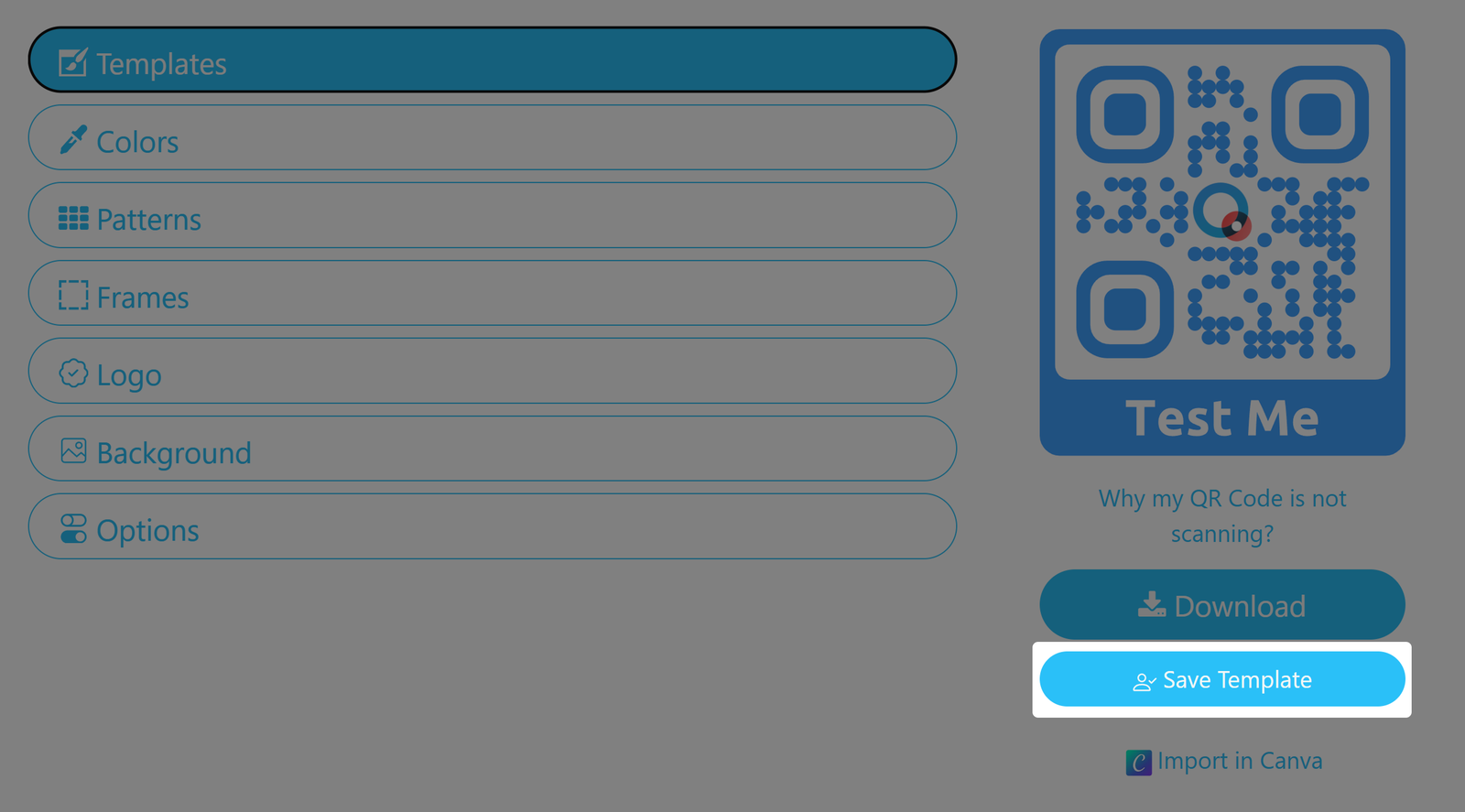
You can save your current design QR Code as a template for future use on other QR Codes and Landing pages. Templates can be applied individually or to a folder/group of QR Codes.
Screenshot QR Code Save Template button
Save your current design as a resuable template.

Optional template attributes

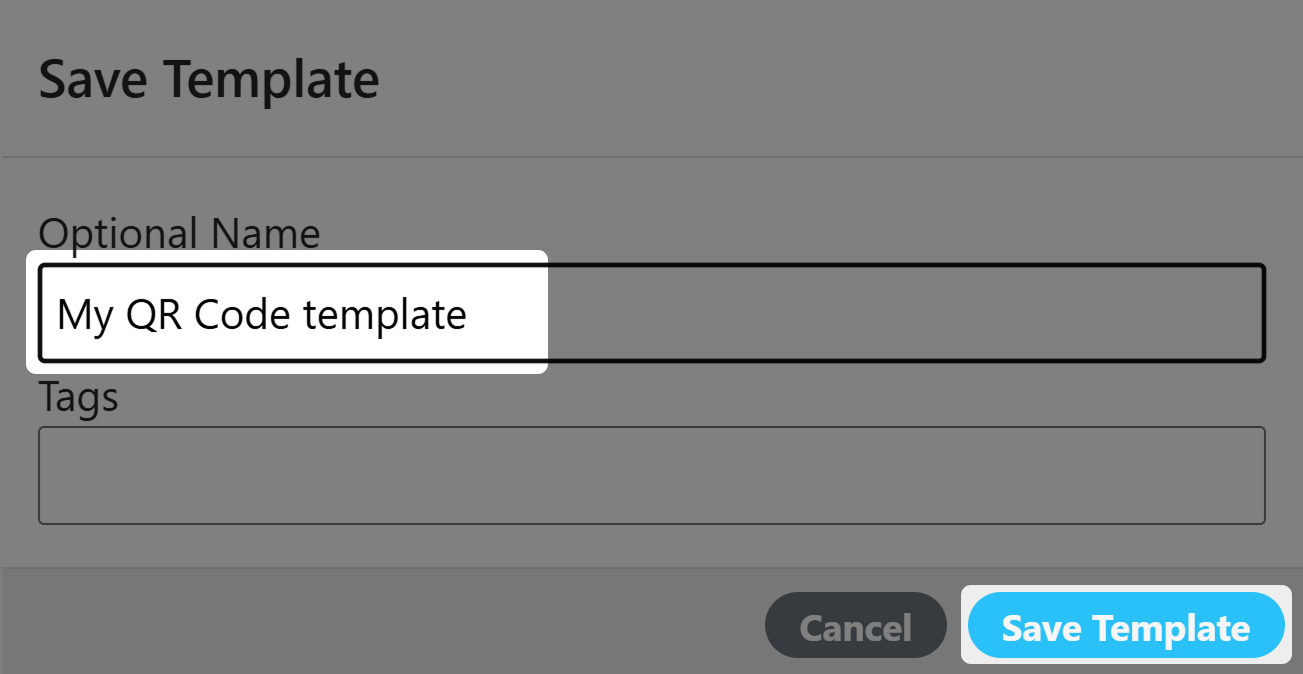
To save the template, please click on the Save Template button. A popup window appears, where you may assign an optional name or tags for your template, under which it can be found more easily later.

Screenshot of Save Template Pane
Set an optional Template Name

After you confirm with OK, the template is saved in the My Templates section. All your QR Code templates are located in this section.

Template Markers 

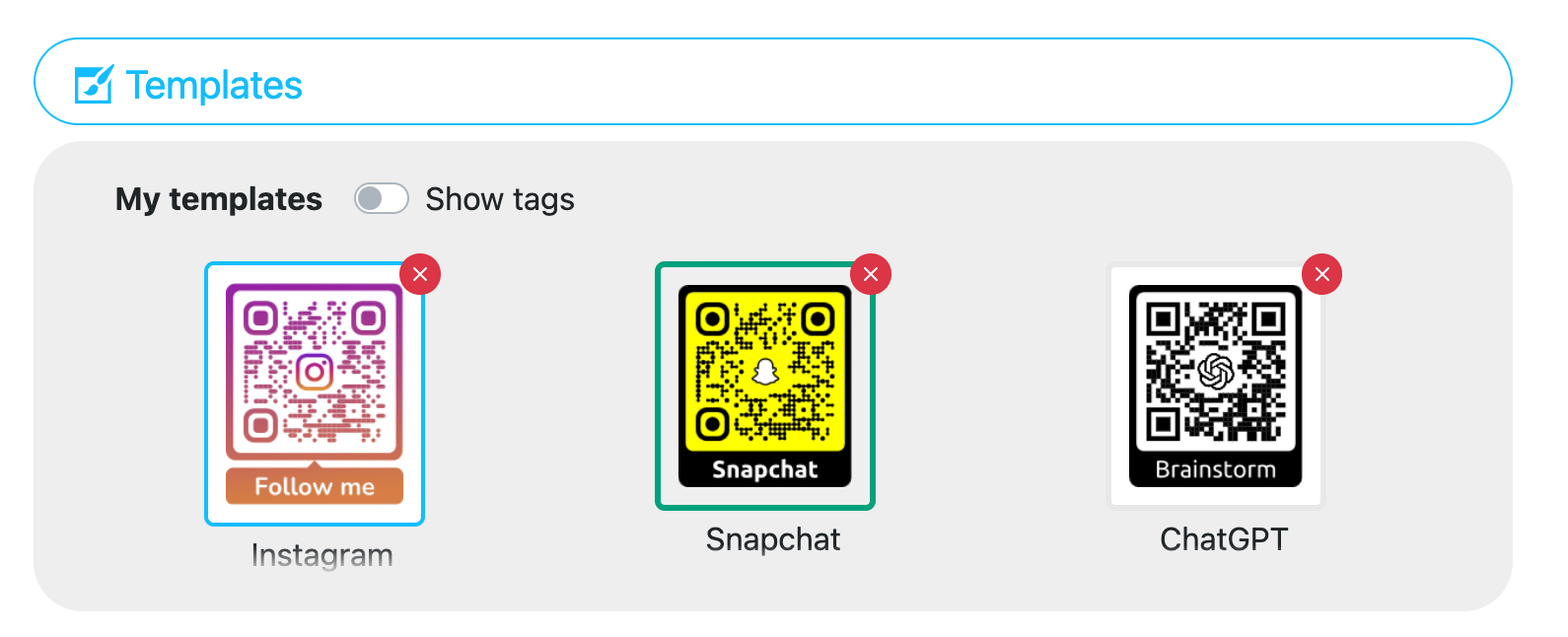
Screenshot of saved templates
Templates are saved under My Templates
Note that the colored frames around the first two QR Code templates. The first one is an indicator that the template has been created by an administrator (and can only be changed or deleted by one). The second green frame is shown when you have selected a template from the My template section.

Deleting a template

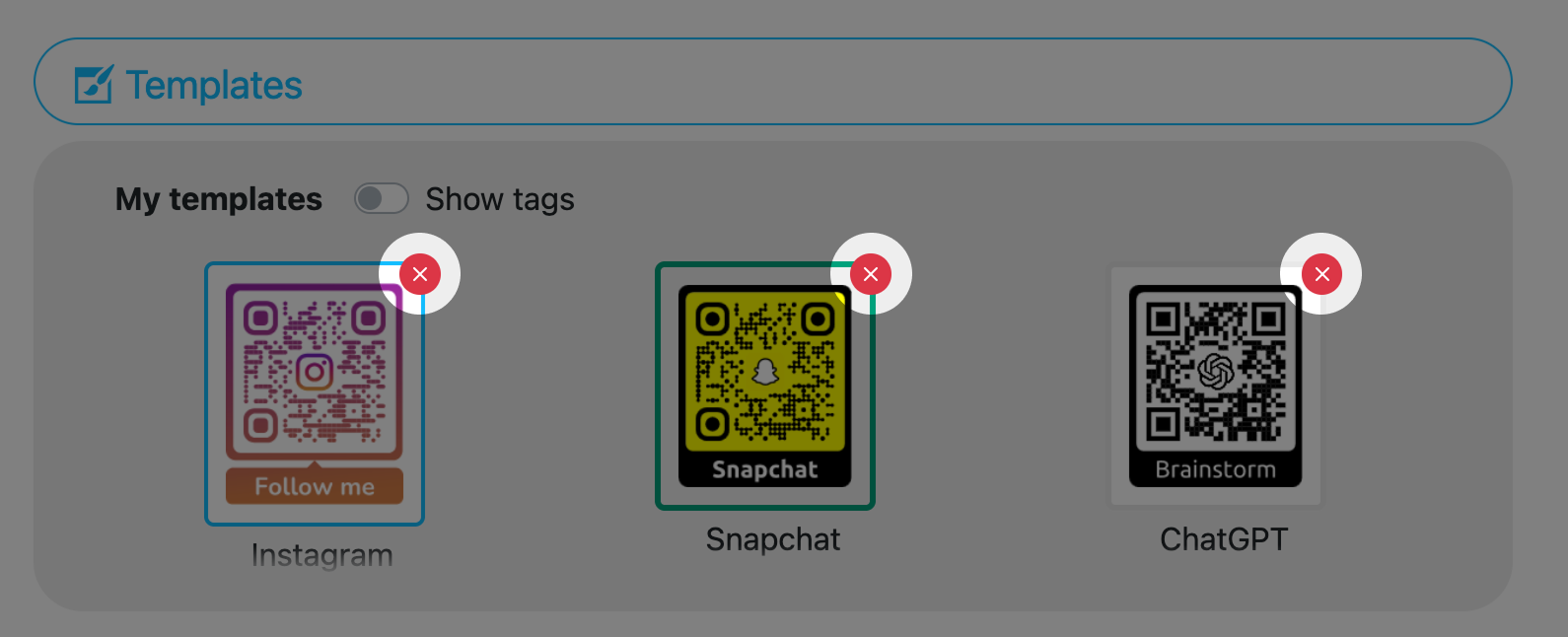
If you want to delete a QR Code template, use the X in the Code's top-right corner and confirm.
Screenshot of highlighted delete button for templates
Delete old templates.

Overwriting an existing template

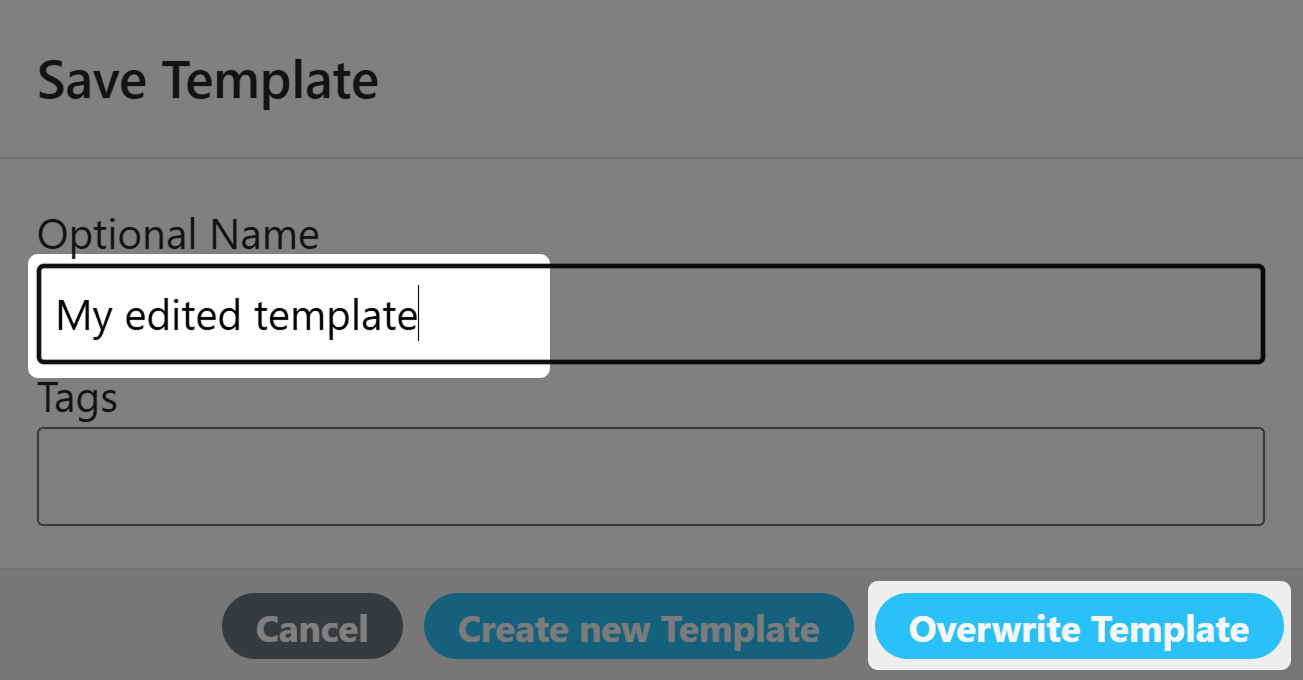
Custom templates can also be overwritten. Simply select the template in your My Templates section and it will be marked with a green frame. Then you can change your template as needed and hit Save Template. You will now see an additional button in the Save pane to Overwrite Template. You can also save the current settings as new template by using the Create new Template button.

Screenshot of Save Pane
Overwrite an existing template.

Designer Limitations

Output

Depending on the selected file format and features used in a Designer QR Code the following matrix explains if the output is pure vector or combined vector with raster graphics.

SVGPDFEPS (deprecated)
With SVG LogoPure vectorPure vectorPure vector
With GradientPure vectorPure vectorMixed vector / raster

Editor / Viewer

Depending on the selected format and features used in a Designer QR Code the following matrix explains which viewers or editors can be used to view and edit the QR Codes.

SVGPDFEPS (deprecated)
With SVG LogoBrowser onlyBrowser / IllustratorIllustrator
With GradientBrowser / IllustratorBrowser / IllustratorIllustrator

You may obtain different results depending on your design software version and capabilities.